
How to Link Your Old Cricut Cartridges to Your Cricut Access Account
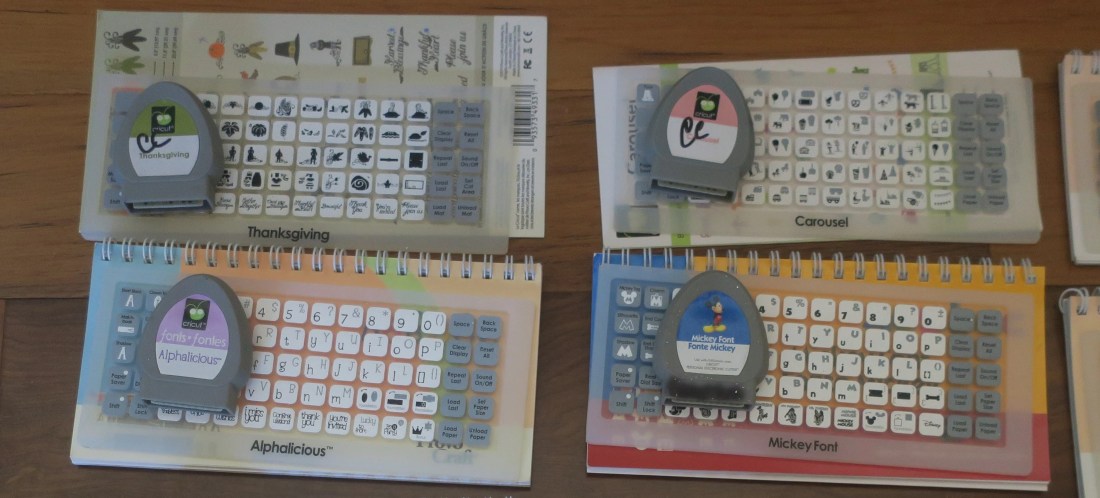
If you’ve been crafting with Cricut for years, chances are you have a collection of graphic cartridges from the early days. While Cricut has moved toward digital design with Cricut Design Space, you can still link your old cartridges to your Cricut Access account, giving you access to those designs without needing the physical cartridge every time. Here’s a step-by-step guide to help you link your cartridges and ensure they’re part of your digital library.
What You Need
Before you start, gather the following:
- Your physical Cricut cartridges.
- A Cricut machine with a cartridge port (e.g., Cricut Explore One or Cricut Explore Air).
- A computer or device with Cricut Design Space installed.
- Your Cricut Access login credentials.
Note: If your Cricut machine doesn’t have a cartridge port (e.g., Cricut Maker), you can contact Cricut support for assistance in linking cartridges manually.
Step-by-Step Instructions
Step 1: Log In to Cricut Design Space
- Open Cricut Design Space on your computer or mobile device.
- Log in with your Cricut Access account credentials.
- Navigate to the menu (three lines in the top left corner) and select Account Settings.
Step 2: Prepare Your Machine
- Connect your Cricut machine with a cartridge port to your computer or device.
- Power on the machine and ensure it’s connected to Cricut Design Space.
Step 3: Link Your Cartridges
- Insert your physical cartridge into the cartridge port on your Cricut machine.
- In Cricut Design Space, navigate to Linked Cartridges in the Account Settings menu.
- Click the Link Cartridges button. Cricut Design Space will recognize the cartridge.
- Follow the on-screen prompts to complete the linking process. Once completed, the designs from the cartridge will be available in your digital library.
Step 4: Verify Linked Cartridges
- Once your cartridge is linked, go to Images or Projects in Cricut Design Space.
- Use the search bar to find designs from the cartridge by name or theme.
- Ensure that the designs are now accessible without needing the physical cartridge.
Tips for Machines Without a Cartridge Port
If your machine doesn’t have a cartridge port (e.g., Cricut Maker), you’ll need to contact Cricut’s customer support team. Here’s how:
- Visit the Cricut Support page and select Contact Us.
- Provide proof of cartridge ownership (e.g., a photo of the cartridges).
- Cricut Support will guide you through manually linking the cartridges to your account.
Important Notes
- Cartridges can only be linked to one Cricut Access account. If your cartridges have been linked to another account, they cannot be re-linked.
- Ensure you’re logged in to the correct Cricut Access account before starting the process.
- Linked cartridges do not transfer ownership and cannot be sold or used on other accounts once linked.
Enjoy Your Linked Cartridges
Once your cartridges are linked, you’ll have digital access to all the designs they contain, seamlessly integrated into Cricut Design Space. This makes it easier than ever to revisit and use your favorite designs without having to dig out the physical cartridges.
Happy crafting! If you have any questions or run into issues, don’t hesitate to reach out to Cricut Support or the crafting community for assistance.
Categories: Articles
 MASCrapping