
Beyond Cutting: Using Cricut Design Space to Plan Your Scrapbook Layouts
If you have followed MASCrapping for any length of time, you know that I use my Cricut quite a bit when creating scrapbook layouts. However, one of the features I use most often has nothing to do with actually cutting anything. I use Cricut Design Space to plan my entire scrapbook spread before I ever pull out a piece of cardstock.
Over the years, I have developed a technique that allows me to see exactly how my photographs, titles, and embellishments will fit together on a two-page scrapbook spread. It also allows me to create custom cardstock mats that can surround multiple photographs and design elements, rather than simply placing each photograph on its own rectangular mat.
I thought I would share how I do this, along with a few Cricut templates that I have created to make the process easier. There is a video tutorial near the bottom of this blog that shows this technique.
Starting with a 12 × 24-Inch Canvas
Most of my scrapbook layouts are double-page spreads, with two 12 × 12-inch pages sitting side by side. When I start designing a new spread, I want to see how both pages will look together, rather than designing them separately and hoping they work well when placed next to each other.
To accomplish this, I open Cricut Design Space and create a rectangle measuring 12 × 24 inches. I then change its operation to Guide.
If you are not familiar with the Guide feature, it allows you to place shapes on your Design Space canvas that are visible while you work but will not be cut by your Cricut. This is incredibly useful for planning scrapbook layouts because it gives you a visual representation of the space you have available.
With my 12 × 24-inch guide in place, I can begin designing the entire spread. I know exactly where the edges of my scrapbook pages are, and I can see how the elements on the left and right pages will relate to each other.
One thing to remember is that this is simply a planning guide. I am not trying to cut a 12 × 24-inch piece of cardstock. I am using Design Space as a digital workspace to help me visualize the finished layout.
Adding Photo Placeholders
The next step is to figure out where my photographs will go.
Rather than importing all my actual photographs into Cricut Design Space, I create rectangles that represent their dimensions. Just like the larger scrapbook canvas, I change these rectangles to Guides so they will not be cut. For example, if I know that I want to include three 4 × 6-inch photographs and two smaller photographs, I can create rectangles with those exact measurements and move them around the spread until I find an arrangement that I like.
This is particularly helpful because I can experiment with different layouts without cutting anything or moving photographs around on my desk. I can also see immediately whether a title will fit above a photograph, whether an embellishment will overlap another element, or whether one side of the spread is becoming too crowded.
It is much easier to make these adjustments on the computer than after I have already started cutting and assembling the page!
My Cricut Photo Layout Templates
Because I use certain photograph sizes repeatedly, I have created several templates in Cricut Design Space that I can reuse when planning new scrapbook spreads.
I am sharing three of those templates here for anyone who would like to try this technique.
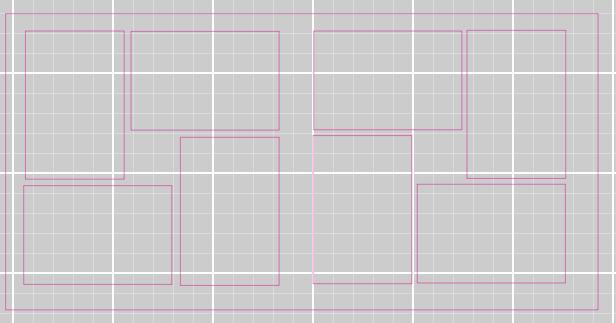
4 × 6-Inch Photo Layout
Open the 4 × 6 Photo Layout in Cricut Design Space
This is probably the most familiar photograph size for scrapbookers. I use 4 × 6-inch photographs frequently, particularly when I want to include several photographs from an event or activity.
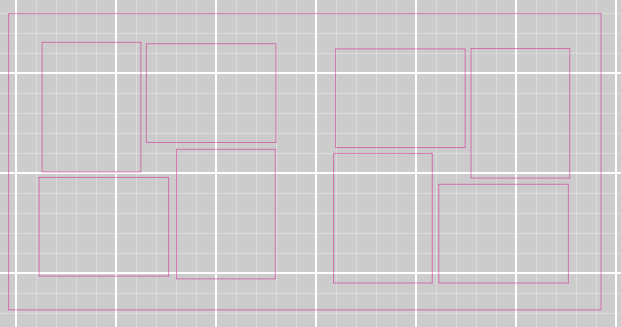
4 × 5.25-Inch Photo Layout
Open the 4 × 5.25 Photo Layout in Cricut Design Space
I also use 4 × 5.25-inch photographs in my scrapbooks. That slightly smaller size can give me additional room for titles, journaling, and embellishments without making the photographs feel too small.
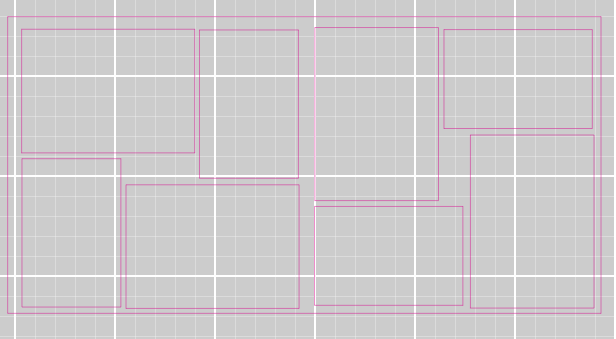
5 × 7-Inch Photo Layout
Open the 5 × 7 Photo Layout in Cricut Design Space
Sometimes I have a photograph that deserves a little more attention. A 5 × 7-inch photograph can serve as the focal point of a spread, with smaller photographs and embellishments arranged around it.
You can use these templates as starting points and modify the arrangements to fit your own photographs and scrapbook designs.
Designing Around the Photographs
Once I have positioned my photo placeholders, I begin adding the other elements that will make up the spread. This might include a large title, smaller decorative pieces, shapes, or other embellishments that I want to cut with my Cricut. One of the advantages of working this way is that I can design around the photographs rather than trying to fit the photographs around a design I have already created. I can adjust the size of a title, move an embellishment, or change the arrangement of several photographs until everything looks balanced. For me, this is where Cricut Design Space becomes much more than a program for cutting shapes. It becomes a tool for actually designing the scrapbook page. And because I am working with the full 12 × 24-inch spread, I can make sure the two pages complement each other.
Creating Custom Cardstock Mats with Offset
This is probably my favorite part of the technique. Traditionally, scrapbookers often mat their photographs individually by placing them on slightly larger pieces of cardstock. There is certainly nothing wrong with that, and I still do it on some of my layouts.
However, I often prefer to create a larger cardstock mat that incorporates several photographs and embellishments into one design. To do this, I arrange my photo placeholders and embellishments exactly where I want them. I then group the shapes together, select the arrangement, and use Cricut Design Space’s Offset feature to create an outline around the collection.
By adjusting the offset distance, I can control how much cardstock will extend beyond the photographs and embellishments. The result is a custom-shaped mat that brings several elements together into a single design. Rather than having three photographs sitting on three separate rectangular mats, I can create one larger piece of cardstock that follows the overall shape of the arrangement. I particularly like this technique because it helps connect the photographs and embellishments visually. It also allows me to create interesting shapes that would be much more difficult to measure and cut by hand.
Once I have created the offset, I can prepare that new shape for cutting while keeping the original photo placeholders as Guides. That way, the Cricut cuts the cardstock mat without trying to cut the photograph placeholders themselves. Depending on the design, I may also create additional layers or adjust the outline to achieve the look I want.
Why I Like Designing This Way
There are several reasons I have come to rely on this approach.
- First, it helps me avoid wasting cardstock. I can experiment with different arrangements, sizes, and shapes before committing to cutting anything.
- Second, it allows me to be much more precise. I know exactly how much space my photographs will occupy, and I can size the other elements accordingly.
- Third, it gives me more creative freedom. Instead of being limited to standard rectangular photo mats, I can create custom shapes that tie the entire spread together.
- Finally, it helps me think about the two pages as one design. When someone opens a scrapbook album, they see both pages together, and I want those pages to feel connected.
Of course, I still make changes as I assemble the actual spread. Sometimes a photograph looks different once it is printed, or I discover that an embellishment would look better somewhere else. That is part of the creative process. But having the layout planned in advance gives me a very good starting point.
Watch the Technique in Action
I realize that some of this is much easier to understand when you can actually see it happening on the screen. In the video below, I walk through the process of creating the 12 × 24-inch scrapbook guide, adding photograph placeholders, arranging the design elements, and using Offset to create custom cardstock mats. You will be able to see how the various pieces come together and how I prepare the finished design for cutting.
Give It a Try!
If you already own a Cricut, I encourage you to experiment with using Design Space to plan your scrapbook layouts, even if you have never used the Guide feature before.
You do not need to start with an elaborate design. Try creating a 12 × 24-inch guide, adding a few photo placeholders, and moving them around until you find an arrangement you like. Then experiment with adding a title or embellishment and see how the Offset feature might help you create a custom cardstock mat.
You might be surprised at how useful Cricut Design Space can be as a scrapbook design tool, even before you send anything to the cutting machine.
And if you try one of the templates I have shared, I would love to hear how it works for you. Feel free to share your experiences or questions in the comments.
Categories: Articles, Cricut Design Space

