
Designing Scrapbook Titles with AI: From the First Prompt to a Cricut-Ready Design
AI in the Scrapbook Room: Article 10
In the previous article in my AI in the Scrapbook Room series, we explored how ChatGPT can help us come up with creative titles for our scrapbook pages. But once you have decided what you want your title to say, there is another challenge: figuring out what you want it to look like.
I use my Cricut extensively when creating scrapbook pages, and I particularly enjoy making titles from cardstock. Sometimes that means cutting out a few simple words, while other times I want something more elaborate that incorporates graphics, multiple colors, or shapes that reflect the subject of the page.
This is where ChatGPT can become a useful design partner. Rather than searching for a premade title or trying to create something entirely from scratch, I can describe what I have in mind and ask ChatGPT to create a visual design. More importantly, I can continue working with ChatGPT to refine that design until it is something I can actually use.
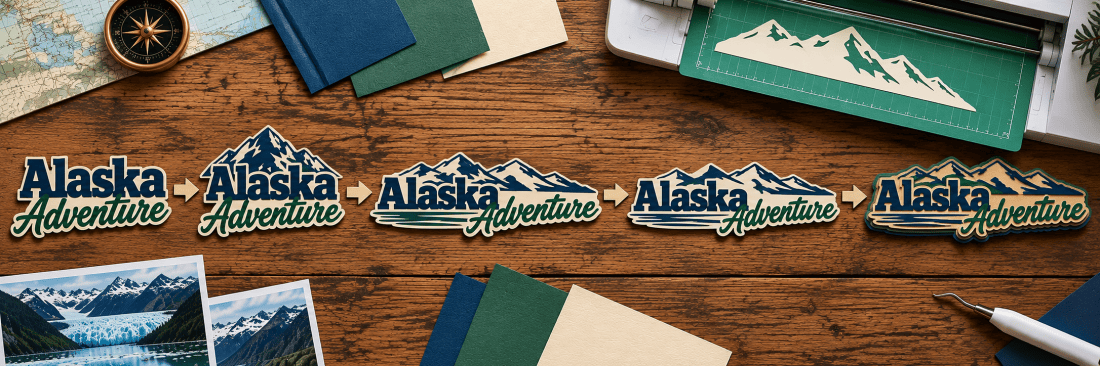
For this article, we’re going to do something a little different. Instead of looking at several unrelated examples, we’re going to work on one scrapbook title from beginning to end, using a series of prompts that build on one another.
Our project will be an “Alaska Adventure” title, designed for a scrapbook page about an Alaskan cruise. We’ll begin with a simple title, add graphics, adjust its dimensions, simplify it for cardstock, and finally prepare it for Cricut Design Space.
I’ve also included a video at the bottom of this article that demonstrates the entire process. You can watch it straight through or pause after each stage to try the prompts yourself. The video includes chapters that correspond to the sections below, making it easy to find your place.
Step 1: Creating Our First Title Design
Let’s start with something relatively simple.
I want a title that says “Alaska Adventure,” and I want it to have a bold, masculine appearance. Because the scrapbook is about Alaska, I’m thinking about colors and lettering that suggest wilderness, mountains, and outdoor exploration.
I don’t want to overwhelm ChatGPT with too many instructions at this point. My goal is simply to establish a starting design that we can develop further.
Prompt 1:
Create a visual scrapbook title that says “Alaska Adventure.” Use bold, masculine lettering inspired by wilderness travel. Start with a simple, clean design, using navy blue and forest green. Do not include photographs or a scrapbook page background.
Notice that I’m specifically asking for a visual title. I don’t want ChatGPT to give me a list of font suggestions or describe what the title might look like. I want it to actually generate an image. I’m also identifying the words, general style, and colors. Those three pieces of information give ChatGPT a starting point without restricting every aspect of the design.
The first result might be something I love, or it might be something that needs considerable work. Either outcome is fine. At this stage, we’re looking for a starting point, not a finished product.
One thing I would check immediately is whether ChatGPT has spelled the title correctly. AI-generated graphics have improved considerably, but lettering can still contain mistakes. It’s much easier to catch those problems now than after we’ve started cutting cardstock.
Step 2: Adding Graphics to the Title
Now that we have an initial design, let’s make it more specific to Alaska.
One of the things I enjoy about creating my own scrapbook titles is incorporating visual elements that connect the lettering to the photographs. For an Alaska page, mountains seem like an obvious choice. They could appear above the title, behind the words, or perhaps become part of the lettering itself.
Rather than starting a new conversation, we’re going to continue working with the design ChatGPT has already created.
Prompt 2:
Keep the lettering style from the previous design, but add a simple silhouette of Alaskan mountains that complements the title. Make the mountains part of the overall composition rather than a separate decorative picture. Keep the design bold and uncluttered.
This is an important part of learning to work with AI. You don’t have to start over every time you want to make a change.
You can tell ChatGPT what you like about the existing design and what you want to change. In this case, we’re asking it to preserve the lettering while introducing another element. Of course, ChatGPT may not follow those instructions perfectly. It might change the lettering more than we wanted or make the mountains too elaborate. If that happens, we can continue the conversation.
For example, I might say, “I like the mountains, but they are overpowering the words. Make the mountains smaller and keep the lettering as the dominant element.”
This back-and-forth process is one of the things I find most useful about designing with ChatGPT. I don’t need to know exactly what the finished title should look like before I begin. I can develop the idea as I see the results.
Step 3: Designing for the Space Available
Now we need to think about where this title will actually go.
Most of my scrapbook pages are 12 inches by 12 inches, and I frequently work with double-page spreads measuring 12 inches by 24 inches. I generally arrange my photographs first, then design the remaining elements around them. That means I don’t necessarily have unlimited space for a title.
For our Alaska project, let’s assume that I have a space approximately 10 inches wide and 2.5 inches tall. This is a relatively long, narrow area, so a title that looks wonderful in a square image may not work very well.
Prompt 3:
I need this title to fit within an area 10 inches wide and 2.5 inches tall on my scrapbook page. Adjust the proportions of the design to suit this wide, shallow space. Preserve the mountain silhouette and keep all the words easy to read.
By providing these dimensions, we’re asking ChatGPT to think about the title as an element that needs to fit into an actual scrapbook layout. This may require arranging the words side by side, making the mountain silhouette shallower, or changing the proportions of the lettering.
There is an important limitation to understand here. ChatGPT can design with dimensions in mind, but that doesn’t guarantee that the image it generates will have mathematically exact measurements. We will verify and adjust the final size in Cricut Design Space.
I also wouldn’t hesitate to upload a photograph or screenshot of my scrapbook layout and show ChatGPT where the title needs to go. That gives it additional visual context, especially when we’re working around photographs, embellishments, or memorabilia that are already positioned on the page.
The key is to remember that we’re designing for a physical scrapbook, not simply creating an attractive image on a computer screen.
Step 4: Simplifying the Title for Cardstock
This is probably the most important step for anyone planning to cut their title from cardstock.
ChatGPT can create some beautiful designs, but not everything that looks good on a screen translates well into something that can be cut with a Cricut. Tiny details, complicated shading, thin lines, and numerous small pieces can turn a relatively simple project into a frustrating afternoon. I’ve learned that it helps to tell ChatGPT about those limitations before trying to use the design.
For this title, I want to limit the artwork to three cardstock colors. I also want solid shapes that are reasonably easy to cut, weed, and assemble.
Prompt 4:
I want to cut this design from cardstock using my Cricut. Simplify it to a maximum of three solid colors: navy blue, forest green, and cream. Remove gradients, shadows, textures, and tiny details. Use large, connected shapes wherever possible, and avoid delicate pieces that would be difficult to cut or assemble.
At this point, we’re asking ChatGPT to think less like a digital illustrator and more like someone creating a paper-piecing project.
I generally prefer designs with fewer, larger pieces rather than dozens of tiny components. This is particularly true for the masculine scrapbook pages I enjoy creating, where bold shapes and strong lettering often work better than intricate decoration.
I would examine the new version carefully. Are there small pieces inside the letters that might be difficult to handle? Does the mountain silhouette contain narrow points? Are the colors clearly separated? Would the title still look good if we simplified it further? We can continue refining the design until we’re comfortable with the result.
And remember, you don’t have to accept every change ChatGPT makes. If the simplified version loses something you particularly liked, tell it what you want restored. The goal is to find a balance between visual appeal and practical construction.
Step 5: Preparing the Artwork for Cricut Design Space
Now we’re ready for the final ChatGPT prompt.
We have a title with the wording we want, graphics that reflect the subject, proportions that suit our scrapbook page, and a simplified color scheme. The next step is to get a clean version of the artwork that we can bring into Cricut Design Space.
One thing I have found particularly helpful is asking ChatGPT to create the graphic with a transparent background. That means we can import the title without having to deal with a large colored or white rectangle surrounding the design.
Prompt 5:
Create a clean version of the final title design with a transparent background. Preserve the exact lettering and mountain shapes from the approved version. Do not include a scrapbook page, photograph, mockup, or decorative background. I want to import the artwork into Cricut Design Space and prepare it for cardstock cutting.
Once ChatGPT produces the image, I can download it and bring it into Cricut Design Space.
This is where the project moves from AI-generated artwork to something we can actually make.
Cricut Design Space has some useful tools built into its image import process. It can help remove backgrounds and create separate layers from the colors in an image. That means we don’t necessarily have to ask ChatGPT to produce individual cutting files for every color.
In the accompanying video, I’ll demonstrate how I use those features to import the title, clean up the image where necessary, and create the layers for cutting different colors of cardstock. We’ll also check the dimensions and make sure the finished title fits the space we originally identified.
Even when ChatGPT produces an image with a transparent background, I still like to inspect it carefully during import. Sometimes there are small details or imperfections that need attention. And although ChatGPT can try to preserve a design between prompts, it may change lettering or shapes slightly, so it’s worth checking the final artwork against the version you approved.
The combination of ChatGPT and Cricut Design Space is what makes this process particularly useful to me. ChatGPT helps develop the visual concept, while Cricut Design Space provides the tools needed to turn that concept into a cardstock project.
What This Project Teaches Us About Working with AI
There are several things I hope you’ll take away from this exercise.
- First, you don’t need to write one enormous prompt containing every possible instruction. In fact, I think it’s often better to begin with a relatively simple request and gradually develop the design.
- Second, ChatGPT works best when you tell it not only what you want to create, but also how you intend to use it. Knowing that a graphic will be cut from cardstock changes the kinds of shapes, colors, and details that make sense.
- Third, don’t be afraid to tell ChatGPT that something isn’t working. If the mountains are too large, the lettering is difficult to read, or the design contains too many small pieces, explain the problem and ask for a revision.
- Finally, remember that the AI-generated design is only part of the creative process. We still make the decisions about which version to use, how to prepare it, what cardstock colors to select, and where it belongs on the scrapbook page.
For me, that’s what makes this technology interesting. It gives me another way to experiment with ideas while still allowing me to create something personal and handmade.
In our next article, Creating Coordinated Two-Page Scrapbook Spreads with AI, we’ll move beyond individual titles and explore how ChatGPT can help us develop a consistent design across two facing scrapbook pages.
Watch the Complete Tutorial
In the video below, I’ll walk through the entire “Alaska Adventure” project, from the initial ChatGPT prompt to importing the final artwork into Cricut Design Space and preparing the cardstock layers.
The video is divided into chapters corresponding to the five steps in this article. You can watch the entire demonstration or pause at each stage and try the prompts with a title of your own.

Categories: AI Tips and Tricks, Articles

